ChirpStack V4 Connector
Connector-detaljer ChirpStack
ChirpStack V4-connectorn gör det möjligt för plattformen att provisionera enheter och prenumerera på enhetsuppdateringar från en ChirpStack V4 LoRaWAN-server. Detta automatiserar ChirpStack-integrationen och möjliggör full enhetshantering direkt i Yggio. Funktioner som stöds:
- Provisionering av nya enheter
- Prenumeration på enhetsuppdateringar
- Borttagning av enheter
Krav: MQTT broker tillagd i ChirpStack v4, till exempel Mosquitto.
Nödvändig Information
För att sätta upp en anslutning till en ChirpStack v4-server, ange följande:
- a. ChirpStack API- och MQTT broker URL: lora.yggio.net (Sensatives ChirpStack V4 LoraWAN-server)
- b. Tenant UUID: Tenant UUID som ska användas i ChirpStack
- c. Token: En API-nyckel genererad i Tenanten
- d. MQTT Username: Ditt MQTT-användarnamn
- e. MQTT Password: Ditt MQTT-lösenord
- f. Application UUID: Application UUID som ska användas i ChirpStack
Ytterligare information
- Default Flow: Vilket standardflöde som ska användas för IoT-noder som använder connectorn
- Retention Policy: Vilken standard retention policy som ska användas för IoT-noder som använder connectorn
⚠️ ChirpStack V4 måste vara förkonfigurerad med alla uppgifter listade ovan, och API-användaren måste vara aktiv och ha en Admin-roll för att kunna utföra dessa åtgärder. Om du får ett 40x-felsvar beror det troligen på felaktiga UUID:er, fel API-nyckel, felaktiga autentiseringsuppgifter, fel URL eller otillräckliga åtkomsträttigheter. Det kan även bero på att konfigurationsfilerna för autentiseringsuppgifter i ChirpStack eller MQTT broker inte stämmer. Se till att all konfiguration och alla inställningar gås igenom och justeras vid behov.
Konfigurera ChirpStack
Börja med att Sätta upp Åtkomsten
Logga in på din ChirpStack-server och skapa ett API-användarkonto. Skapa vid behov även en ny Tenant och Application. Om du inte har en egen LoRaWAN-server men vill ha en privat installation, kontakta din supportkontakt.
- a. Kontot måste vara kopplat till både en Tenant och en Application för att möjliggöra enhetsprovisionering.
- b. Användaren måste ha rollen
Admini Tenanten - c. Skapa en API-nyckel i Tenanten. Denna nyckel visas bara en gång och måste anges i connectorn i IoT-plattformen. Se till att kopiera den.
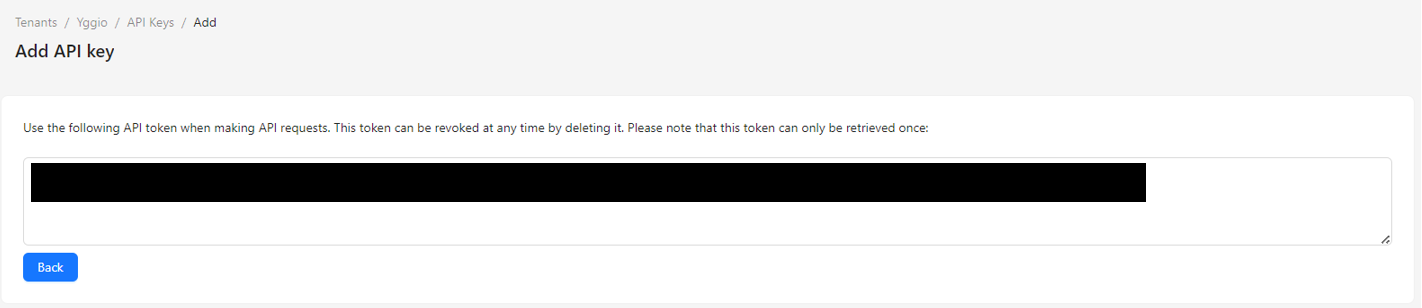
Observera att ID för Tenant och Application finns tillgängligt i webbläsarens URL
Skapa Device Profiles
I ChirpStack behöver du skapa Device Profiles. Dessa definierar vilka LoRaWAN-inställningar som ska användas, inklusive om OTAA stöds, LoRaWAN-version (vanligtvis 1.0.2, 1.0.4 eller 1.1), Regional Parameters (t.ex. Region A, B, eller en specifik RP-version), och om enheten använder Class A eller Class C. Ytterligare parametrar kan också gälla.
Device Profiles är viktiga – om inställningarna inte matchar den faktiska enheten kan LoRaWAN-meddelanden gå förlorade, och styrdon (aktuatorer) svarar inte omedelbart om inte Class C är aktiverat.
När de är konfigurerade visas Device Profiles i IoT-plattformen när du skapar en ny LoRaWAN-enhet.
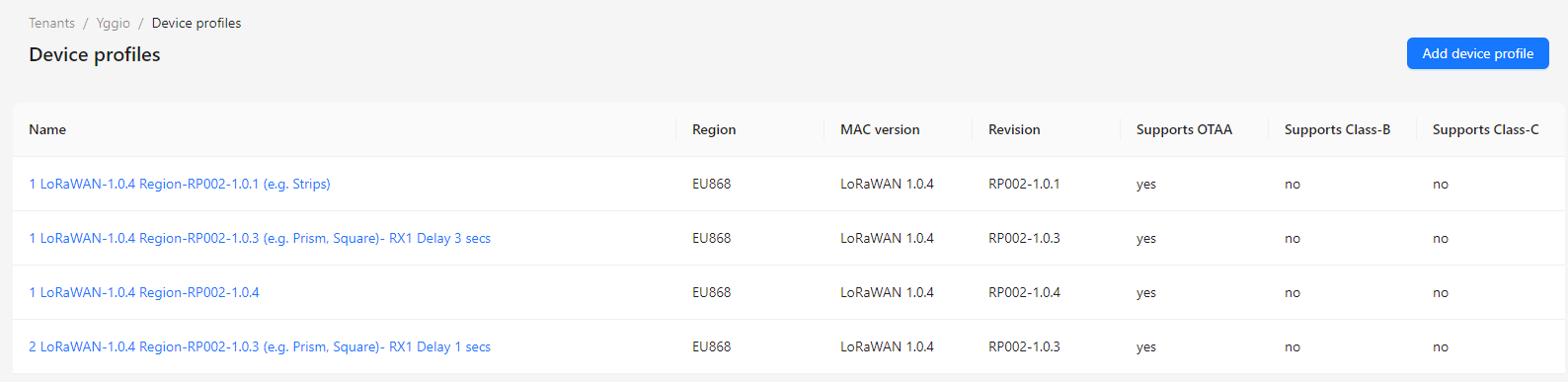
Sätta upp Connectorn
När ChirpStack-konfigurationen är klar, fortsätt till IoT-plattformen:
- Navigera till Connectors → New Connector → ChirpStack V4 Connector
- Fyll i de nödvändiga fälten med den insamlade informationen.
Observera att Network Server ID, Tenant ID och Application ID alla kan hittas i webbläsarens URL-fält. Nedan är ett exempel för Network Server, och bilderna ovan ger ytterligare detaljer.
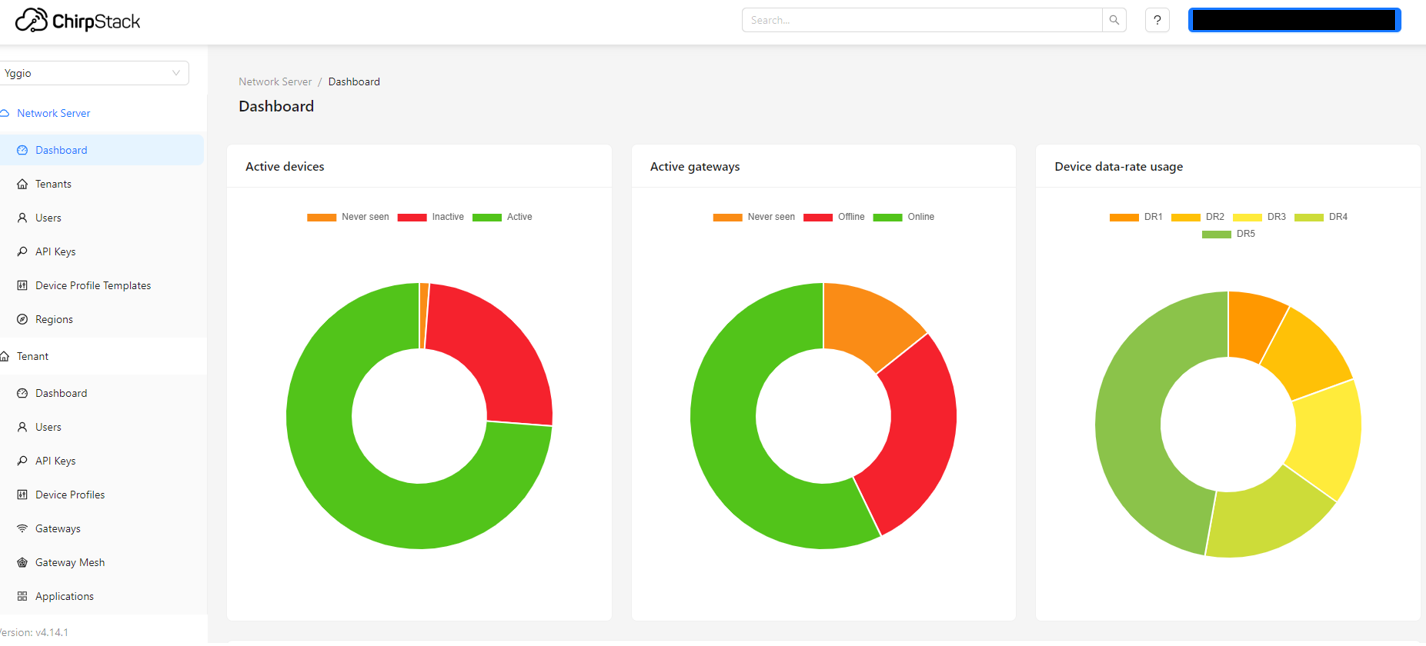
Verifiera Connectorn
-
Plattformen verifierar automatiskt anslutningen när connectorn skapas, men detta garanterar inte full funktionalitet.
-
För att utföra en fullständig verifiering:
- Skapa en enhet i plattformen med ChirpStack-connectorn.
- Öppna enhetssidan efter att den skapats.
- Gå till Tools och kontrollera statusen för Synchronize - den bör inte visa
"never". - Klicka på Synchronize-knappen manuellt för att bekräfta att det fungerar.
- Logga in på ChirpStack och bekräfta att enheten har provisionerats.
- Utlös (eller vänta på) enhetens första uplink.
- Kontrollera att uplinken tas emot och avkodas korrekt av plattformen.
Multikonto-installation
Det finns två huvudsakliga sätt att integrera ChirpStack med IoT-plattformen:
1. Användare behöver åtkomst till ChirpStack Spegla delar av IoT-plattformens organisationsstruktur i ChirpStack-servern. Användare kan få ChirpStack-konton för att se LoRaWAN-specifika anslutningsparametrar och skapa nya Device Profiles. Skapa i detta fall en connector per tenant.
2. Användare behöver inte åtkomst till ChirpStack Använd en platt struktur i ChirpStack, där alla enheter hanteras på ett och samma delade ställe. Endast en connector krävs i IoT-plattformen och kan delas med alla användare som behöver lägga till enheter.
Observera: ChirpStack V4 stödjer inte fakturering, så fakturering måste hanteras via IoT-plattformen.
⚠️ Viktigt:
Om en enhet tas bort från IoT-plattformen kommer den som standard även att tas bort och avvecklas från ChirpStacks LoRaWAN-server. För att undvika detta, se till att välja bort borttagningsåtgärden när du blir tillfrågad i bekräftelsedialogen.
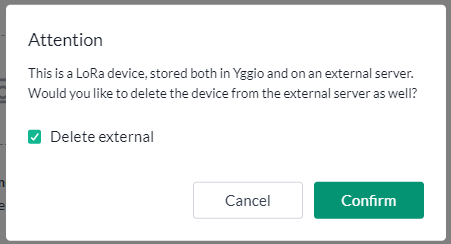
Gateway-konfiguration
Med ChirpStack v4 rekommenderas det att använda LoRa Basics Station istället för den äldre UDP packet forwarder. Nedan är en tabell som jämför de två alternativen för gateway-anslutning.
| Egenskap | LoRa Basics™ Station | Äldre UDP Packet Forwarder |
|---|---|---|
| Anslutningsprotokoll | Säker IP-anslutning (WebSockets/TCP) | Anslutningslös UDP |
| Säkerhet | Modern TLS och tokenbaserad autentisering | Inget säkerhets- eller autentiseringsskydd på transportnivå. LoRaWAN-payloaden förblir dock krypterad end-to-end |
| Tillförlitlighet | Mer tillförlitlig tack vare TCP-hantering, återförsök och bekräftelse av paket | "Fire and forget" – paket kan gå förlorade under överföring utan varning |
| Tidshållning | Inget beroende av lokal tidshållning på gatewayen | Kräver korrekt lokal tidssynkronisering för korrekt drift |
| Skalbarhet | Utformad för robusta, storskaliga, kommersiella nätverksinstallationer | Lämplig för mindre eller enklare installationer |
| Bandbreddsanvändning | Använder JSON-protokoll, vilket kan använda något mer bandbredd än binärt | Enkel, generellt lägre dataanvändning |
| Branschstöd | Håller på att bli den nya branschstandarden och föredras av större nätverksservrar | Äldre stöd fasas ut av många nätverks- och gatewayleverantörer |
| Användarvänlighet | Kräver hantering av säkerhetsnycklar och certifikat, vilket ökar komplexiteten | Enkel att sätta upp och generellt välkänd, ingen hantering av TLS-certifikat krävs |
| Hantering | Centraliserad uppdaterings- och konfigurationshantering för gateway-flottor (CUPS-protokoll) | Ingen fjärrhantering, konfiguration måste göras lokalt |
Sammanfattningsvis erbjuder LoRa Basics™ Station en modernare, säkrare och mer tillförlitlig lösning jämfört med äldre UDP packet forwarders. Att hantera TLS-certifikat och deras utgångsdatum kan dock vara utmanande, särskilt utan en CUPS-server eller ett annat centraliserat system för gatewayhantering. Noggrann planering och proaktiv certifikathantering är nödvändigt för smidig drift.
Felsökning
Jag får ett 40x-fel
- Detta tyder vanligtvis på ett problem med din URL, dina autentiseringsuppgifter eller åtkomsträttigheter. Uteslut dessa en i taget:
- Dubbelkolla URL:en – se till att det inte finns ett avslutande
/i slutet. - Verifiera att användarnamn, lösenord och åtkomstbehörigheter är korrekta.
- Dubbelkolla URL:en – se till att det inte finns ett avslutande
Jag får ingen uplink i IoT-plattformen
- Gå till sensorn i ChirpStacks användargränssnitt.
- Bekräfta att enheten faktiskt har skickat uplinks.
- Bekräfta att MQTT-URL:en och autentiseringsuppgifterna i anslutningen är korrekta och att det inte finns ett avslutande
/i slutet - Om det är din egen nya ChirpStack, kontrollera i MQTT brokerns logg att den kan autentisera och auktorisera mot ChirpStack genom att prenumerera med en lokal broker. Om det misslyckas, redigera dina MQTT-auktoriseringsfiler i ChirpStack.
Jag har en API Gateway mellan mig och ChirpStack - vad ska jag göra?
- Se till att API Gateway ger åtkomst till både ChirpStack-API:et och ChirpStacks MQTT broker.
- När du skapar connectorn, uppdatera API- och MQTT-URL:erna till att peka på de gateway-endpoints som routar korrekt till ChirpStack.
Jag får ett 40x-fel när jag försöker importera eller skapa enheter - vad kan det bero på?
- Ett 40x-fel innebär att ChirpStack avvisar förfrågan. Detta orsakas vanligtvis av:
- Felaktiga autentiseringsuppgifter
- Fel URL
- Saknade eller felaktiga åtkomsträttigheter på ChirpStack-sidan
- Gå igenom exempelbilderna för installationen och verifiera följande:
- Username, password, API URL
- Network Server ID, Tenant ID och Application ID
- Bekräfta även:
- Att ChirpStacks API-användarkonto är markerat som Admin User i rätt Tenant